
GarageBand AutoTune: Pitch Correction Guide (2025)
Published · Updated
- Music
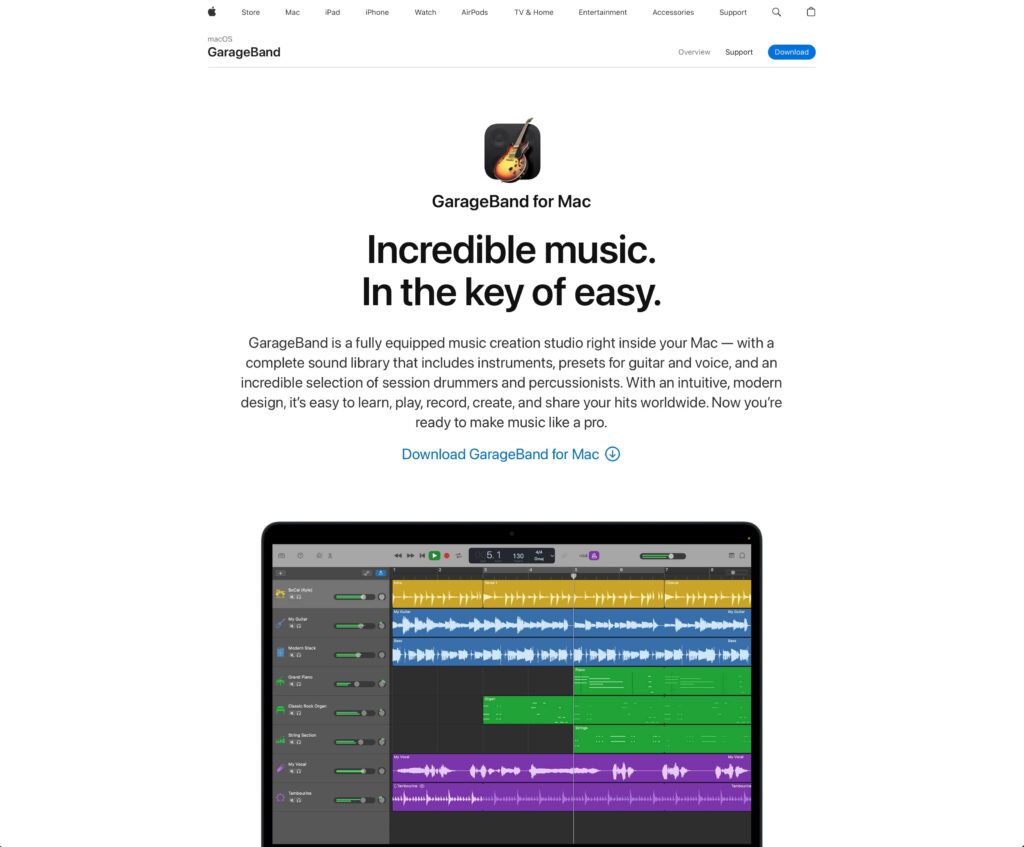
GarageBand is an excellent entry-level digital audio workstation (DAW) to start learning on. Its built-in pitch correction and ability to use 3rd party plugins like the Antares plug-in AutoTune make it an ideal platform to start learning.
As a professional music producer, I always look for ways to enhance my projects, especially when perfecting vocal performances. Pitch correction software is one of the most powerful tools in a producer’s arsenal. I’m going to show you how to master GarageBand AutoTune.
I'll get you on your way to polishing your tracks and getting your vocals always hitting the right notes.
GarageBand AutoTune: Achieving Professional Sound
I can’t emphasize enough the importance of having a polished vocal performance in your projects. Whether you’re working on pop, hip hop, or any other music genre, pitch correction software like AutoTune can make all the difference.
Big names in the music industry, from Travis Scott to Kanye West, have used AutoTune to correct pitch and as a creative effect, giving their tracks a unique and modern sound.
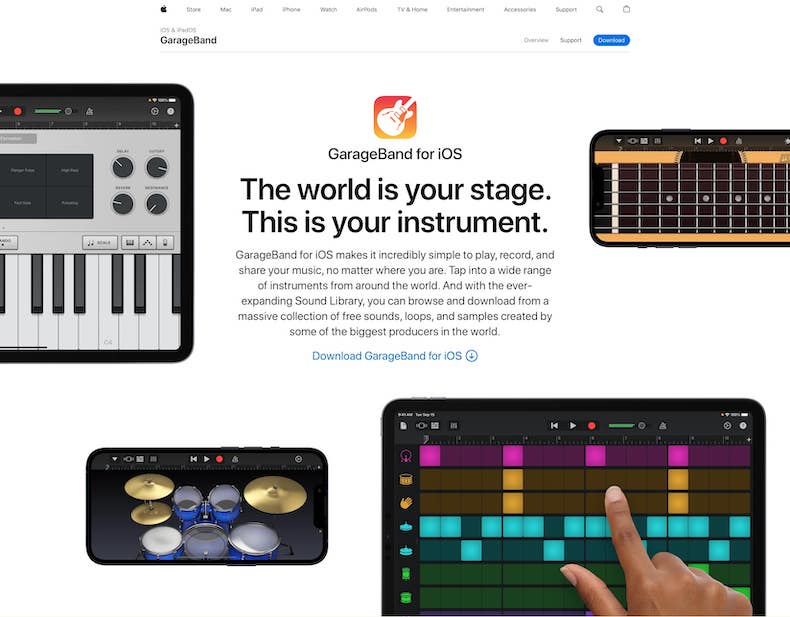
In this blog post, we’ll cover the basics of using AutoTune in Apple’s GarageBand digital audio workstation (DAW) for Mac users and iOS devices and learn how to improve your vocal recordings and achieve that professional sound.
Plugins, Settings, and Techniques for Seamless Vocal Tuning
Before we look into the step-by-step process of using AutoTune in GarageBand, you must understand the different plugin options, settings, and techniques you can use to enhance your vocal tracks.
We’ll explore the world of VST and AU plugins, the various tiers of AutoTune software, and how to use tools like the pitch correction slider and retune speed for optimal results.
From subtle, natural-sounding vocals to the iconic rap music artist T-Pain effect, we’ll cover everything you need to know to make the most of AutoTune and dial in your vocal takes.
GarageBand’s Built-in Pitch Correction vs. AutoTune: Accessibility and Affordability
The AutoTune plugin by Antares Audio Technologies is a popular and powerful pitch correction tool. The industry-standard Auto-Tune Pro is the top-of-the-line option with all the necessary pitch correction features you could ever need. Their latest version today is an incredibly detailed tool that will help you take your pitch correction game to the next level.
It does come at a cost. As most GarageBand users, especially beginners, may be on a tight budget, we’ll focus on using GarageBand’s built-in pitch correction feature in this guide. This free pitch correction tool offers real-time pitch correction and a range of adjustments to help you fine-tune your vocal performance.
Although it may not have all the bells and whistles of the AutoTune plugin, GarageBand’s pitch correction provides a great place to start for users seeking an accessible and affordable solution to enhance their vocal tracks.
Finding the Key of the Song: A Crucial Step for Effective Pitch Correction
Finding the key to the track you’re working on is vital. Knowing the correct key ensures that the pitch correction feature aligns your vocals with the correct musical context.
To identify the key signature of your track, you can use GarageBand’s key signature display, located in the time signature section. This information will be crucial when adjusting the built-in pitch correction settings to achieve the best results.
If you’re unsure of the key or need additional confirmation, you can export your track to a WAV file and upload it to an online service that analyzes the audio and determines the track’s key. These services use advanced algorithms to provide accurate key detection, which you can apply in GarageBand’s pitch correction settings.
Navigating GarageBand’s Built-in Pitch Correction: Interface and Controls
To access GarageBand’s built-in pitch correction feature, open GarageBand and select the audio track containing the vocal performance you want to enhance. Once you’ve chosen the track, open the smart controls panel, and locate the pitch correction slider. This slider enables you to adjust the intensity of the pitch correction applied to the track, from subtle fine-tuning to a more noticeable effect.
Experiment with different settings to find the perfect balance that enhances your vocal performance while maintaining a natural sound until you get the desired effect.
Fine-tuning Your Vocal Performance: Tips and Techniques for Seamless Pitch Correction
Make minor adjustments and closely monitor the results. This way, you can make sure your vocal performance remains natural-sounding and doesn’t sound overly processed.
One helpful technique is to focus on specific audio regions within the vocal track that require more attention rather than applying pitch correction to the entire track or song.
This targeted approach allows you to correct wrong notes and improve your vocal performance without compromising the overall feel and emotion of the recording.
Remember, the goal is to achieve a polished and professional sound while preserving the unique character and essence of the vocalist’s performance.
Pitch Correction Intensity: 100% vs. Conservative Settings
Consider how the intensity of the effect impacts the final vocal sound.

Aggressive Settings
Conservative Settings


Experiment
Antares AutoTune Options
If you don’t want to use GarageBand’s built-in pitch correction, you can buy AutoTune from Antares. It’s not necessary for professional results, but the AutoTone plugin does give you more control and detailed options.
When it comes to vocal recording and achieving pitch-perfect results, Antares AutoTune is one of the most famous VST plugins for fine-tuning your audio recordings.
There are different tiers of auto-tune available that can help take your vocal game to the next level. You can use the plugin for any vocal tracks, including lead vocals, and you can give the same treatment for every song on an entire album.
Auto-Tune Developer Antares offers a basic version called Auto-Tune Access, a good starting point for those new to vocal effects and pitch control.
This simplified option allows you to make minor scale adjustments to your vocal recordings without overwhelming you with advanced features. It’s perfect for those just starting with GarageBand or recording a new track.
For those looking to dive deeper into vocal manipulation and extreme tuning, Antares has additional options that cater to different needs. The higher tiers of Auto-Tune offer more precise control over your entire song, ensuring that every note is perfectly in tune.
Some of these advanced features even allow you to emulate the iconic sound of artists like Stevie Wonder and experiment with other modern music trends.
Frequently Asked Questions
Is GarageBand’s built-in pitch correction feature suitable for male and female voice recordings?
Can I use AutoTune plugins, like Antares Auto-Tune Pro, in GarageBand on my Mac OS?
Can I achieve the T-Pain Autotune effect using GaragBand’s built-in pitch correction tool?
What is retune speed, and how does it affect my vocal performance?
Can I use GarageBand’s built-in pitch correction on individual audio regions instead of the entire track?
How do I determine the key and scale of my song in GarageBand?
Can I use GarageBand’s built-in pitch correction feature in real-time during the recording process?
Is it possible to use MIDI input to control the pitch correction in GarageBand?
Conclusion
Pitch correction is a powerful tool that can take your vocal production to new heights, whether using GarageBand’s built-in pitch correction or opting for a third-party plugin like Antares AutoTune.
Understanding the track's key and adjusting the pitch correction settings to suit your needs is essential to achieving a polished and professional sound.
With practice, you’ll discover the perfect balance between maintaining a natural vocal sound and enhancing your performance as you experiment with different pitch correction intensities. Attention to detail is everything! So start carefully applying the auto tune conservatively and find the sweet spot.
If you take your time and learn to hear the nuances of the vocals and the plugin settings, you can master pitch correction in GarageBand and elevate your music production skills to a whole new level.